No time to read? Your browser and your PDF reader can read the text aloud in a natural voice while you drive, cook or walk. Nothing to install. The button on each article is the shortest path; below, four more cases:
The easy way: the “Listen” button on every article
Every article and page on this site starts with a 🔊 Listen button. Press it and the browser reads the text with its own voice; the same button pauses, Stop ends, 1× changes the speed and the Voice dropdown lets you pick another voice. Works in Chrome, Edge, Safari and Samsung Internet, on computers and phones.
Note for Edge on Android: that browser does not expose the voice list to web pages, so the Voice dropdown does not appear. Choose the voice on the phone instead: Settings → General management → Text-to-speech (preferred engine and voice). Edge also has its own “Read aloud” behind the icon in the address bar, with its own voice picker.
1. This page, on a computer
Microsoft Edge is the shortest path: press Ctrl + Shift + U, or right-click → Read aloud.
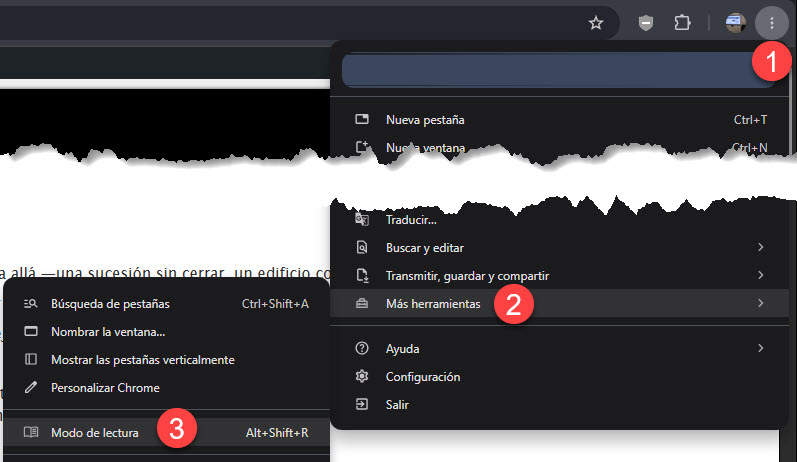
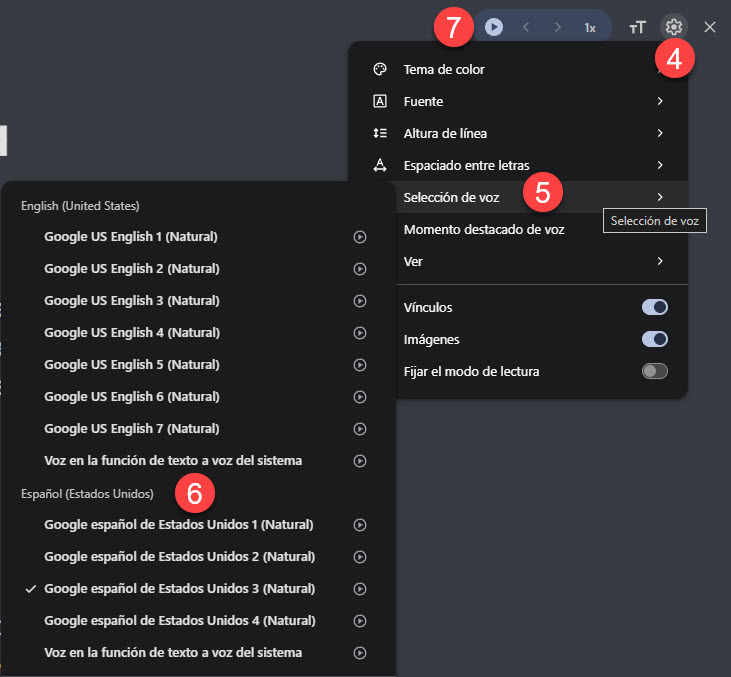
Google Chrome, in three steps:
- Press Alt + Shift + R, or open the ⋮ menu → More tools → Reading mode. The text opens in a side panel.
- In that panel, click the gear ⚙ → Voice selection and pick a voice in your language.
- Press ▶. ‹ › skip by paragraph and 1x changes the speed.
2. This page, on a phone
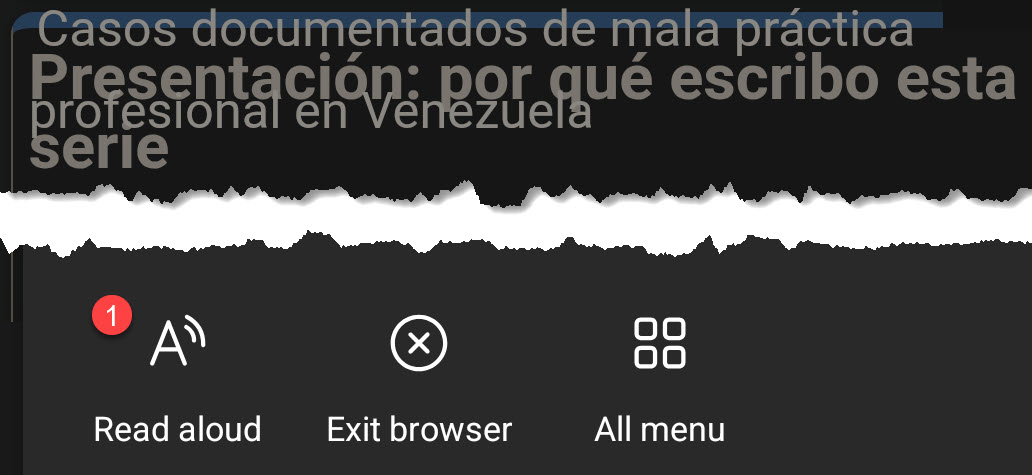
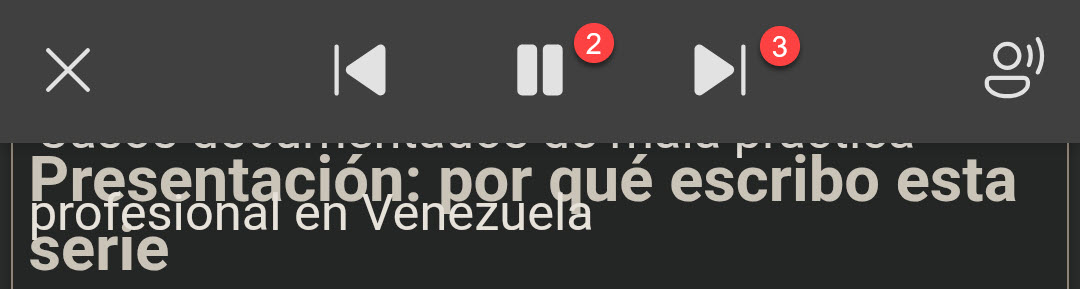
Samsung Internet: open the bottom menu (☰) and tap Read aloud. A bar with pause and paragraph skip appears; you can lock the screen and keep listening.
Chrome (Android): ⋮ menu → Listen to this page. iPhone (Safari): AA icon → Show Reader → AA again → Listen to Page.
3. A PDF document, on a phone
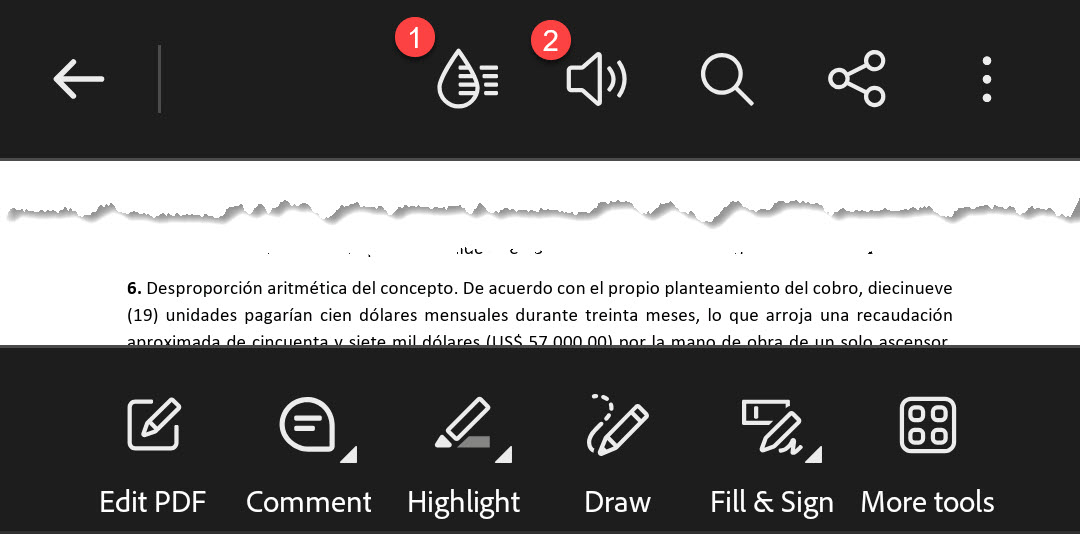
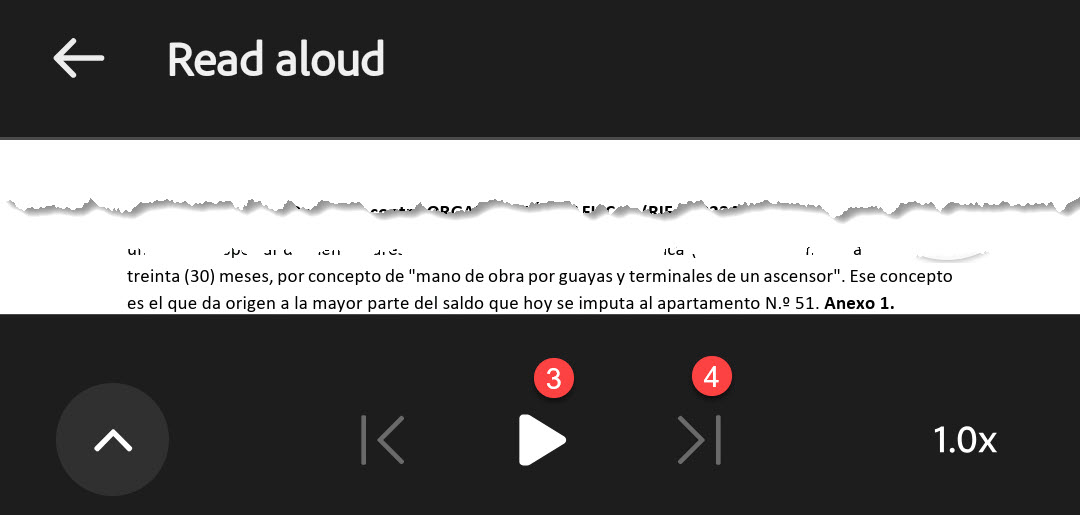
Open it in Adobe Acrobat (free). Tap the reading mode icon (1), then the speaker (2) → Read aloud. Press ▶ (3); the |‹ ›| arrows (4) skip by page.
4. A PDF document, on a computer
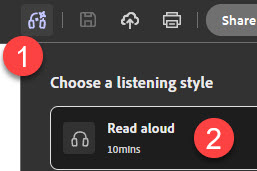
In Adobe Acrobat, click the headphones icon in the top bar (1) and choose Read aloud (2); Acrobat shows how long the reading takes. On an older Acrobat: View menu → Read Out Loud → Activate, then Shift + Ctrl + B to read the whole document.
“Natural” voices download the first time they are used; if the list looks empty, wait a few seconds online and try again.